

In 2026, video content reigns supreme. From aspiring YouTubers and TikTok creators to professional cinematographers cutting feature films, the demand for high-quality, efficient video production tools has never been greater. At the heart of a fluid, frustration-free editing workflow lies one critical piece of hardware: your laptop. Gone are the days when a desktop was the undisputed king for video post-production. Modern mobile workstations are incredibly powerful, but choosing the best laptop for video editing involves navigating a complex landscape of processors, graphics cards, memory, and storage, all while balancing performance with portability and budget.
This isn’t about simply picking the most expensive machine; it’s about understanding the mechanistic relationship between your hardware and your software’s performance. Every click, scrub, and render operation places specific demands on your system. A poorly matched laptop can turn creative flow into an infuriating waiting game. A well-chosen machine, however, becomes an extension of your creative vision, allowing you to focus on storytelling rather than technical bottlenecks. Let’s delve into what truly makes a laptop a powerhouse for video editing in 2026, ensuring you make an informed decision that elevates your editing magic.
Why Your Laptop Choice Matters for Video Editing
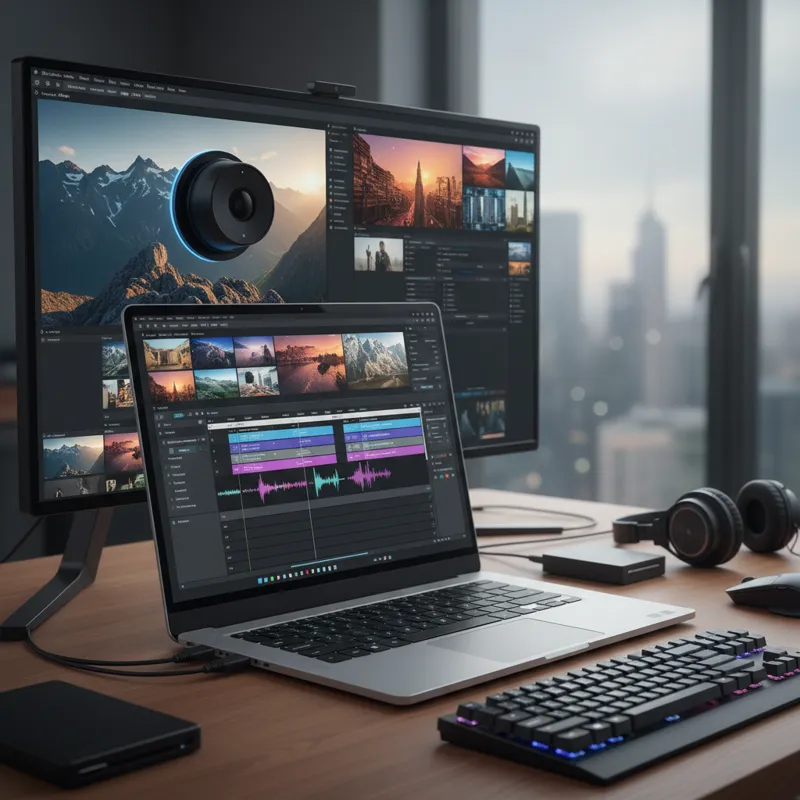
For video editors, a laptop isn’t just a general-purpose computer; it’s a dedicated workstation. The tasks involved – ingesting high-resolution footage, scrubbing through timelines with multiple video and audio tracks, applying complex effects, color grading, and ultimately, encoding and rendering the final output – are intensely demanding. Each of these operations taxes different components of your system in specific ways.
Consider the raw data involved: 4K footage from a modern camera might be captured at 60 frames per second, with high bitrates and complex codecs like H.265 or ProRes RAW. Multiply that by several layers in your timeline, add some GPU-accelerated effects, and perhaps a denoiser, and you quickly hit computational limits. Your laptop’s ability to handle this directly translates into your productivity and creative freedom. Lagging playback, constant crashes, or agonizingly slow render times aren’t just annoying; they directly impede your ability to meet deadlines and produce your best work.
Key Components: Decoding the Video Editing Machine (2026 Edition)
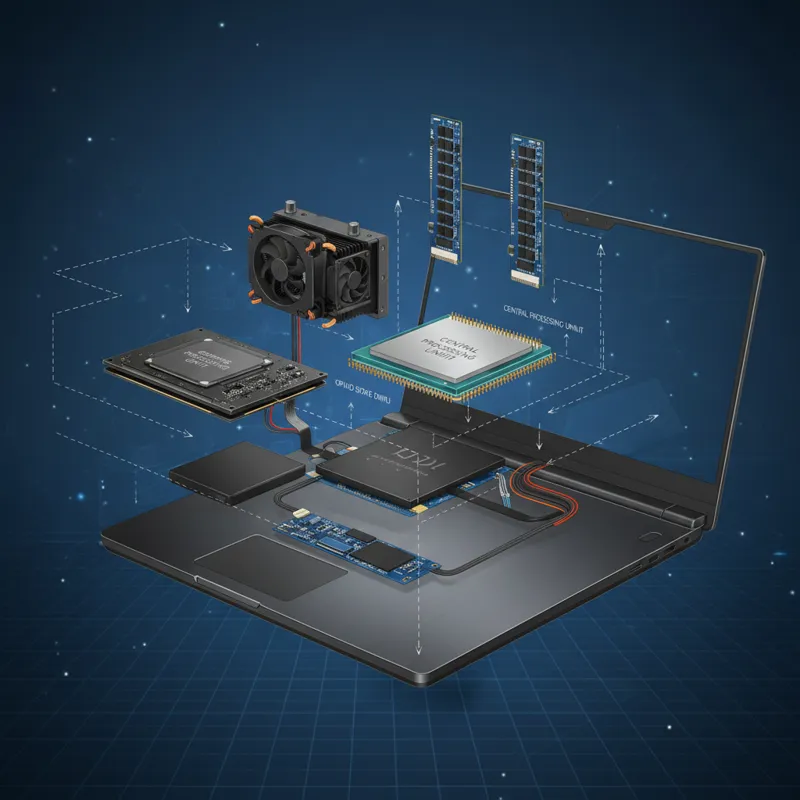
Understanding the core hardware is fundamental. While marketing jargon can be overwhelming, the principles of how these components interact remain consistent. In 2026, we’re seeing continued advancements, making these considerations even more critical.
The Processor (CPU): Your Project’s Brain
The CPU is the central processing unit, the “brain” of your laptop. For video editing, you need a powerful, multi-core processor. In 2026, you’re looking at Intel’s Arrow Lake or Lunar Lake series, AMD’s Zen 5 or 6 architectures, and Apple’s M4 or M5 series chips. These processors offer significant improvements in both raw computational power and efficiency.
What matters most?
- Core Count & Clock Speed: Editing software benefits greatly from more cores, especially for tasks like rendering, encoding, and complex multi-track timelines. Higher clock speeds mean faster individual operations. Aim for at least 8-12 powerful cores, with more being better for demanding workflows.
- Integrated Media Engines: This is a game-changer. Intel’s Quick Sync, AMD’s VCN (Video Core Next), and Apple’s dedicated Media Engines are hardware accelerators built directly into the CPU or SoC (System on a Chip). They dramatically speed up encoding and decoding of common video codecs like H.264 and H.265, crucial for playback and export. Don’t underestimate their impact; they can often outperform a discrete GPU for these specific tasks, making everyday editing far smoother.
The Graphics Card (GPU): Visual Powerhouse
While the CPU handles the overall project management, the GPU (Graphics Processing Unit) is responsible for all things visual. This includes real-time playback of high-resolution footage, applying complex effects, color grading, and often, accelerating the final render. In 2026, NVIDIA’s RTX 5000 series (Blackwell architecture) and AMD’s RDNA 4/5 GPUs are at the forefront.
Key GPU considerations:
- VRAM: This is the dedicated memory for your GPU. More VRAM (e.g., 8GB, 12GB, 16GB, or more) is crucial for handling high-resolution textures, complex effects, and multiple video streams. 4K projects will quickly chew through VRAM.
- CUDA Cores / Stream Processors: These are the parallel processing units that crunch through graphical tasks. More cores generally mean better performance in GPU-accelerated tasks.
- Dedicated Encoders (NVENC/AMF): Similar to the CPU’s media engines, modern GPUs have dedicated hardware for encoding/decoding. NVIDIA’s NVENC and AMD’s AMF can further accelerate export times, especially when the software leverages them effectively.
For most professional video editing, a dedicated GPU is essential. Integrated graphics, even powerful ones like those in Apple’s M-series chips, can be excellent, but a discrete GPU provides an additional layer of processing power for the heaviest workloads.
RAM (Memory): The Workbench Size
RAM, or Random Access Memory, is your system’s short-term workspace. It’s where your operating system, editing software, and current project files reside for quick access. Think of it as your desktop workbench: the bigger it is, the more tools and project elements you can have open and accessible at once without needing to constantly fetch them from slower storage.
For video editing in 2026:
- Minimum: 16GB is barely acceptable for light 1080p editing.
- Recommended: 32GB of DDR5 or LPDDR5X RAM is the sweet spot for smooth 4K editing and multi-application workflows. This allows ample space for complex timelines, multiple effects, and background processes.
- Optimal: 64GB or more is ideal for 4K/8K projects, heavy motion graphics, or working with RAW video formats. You rarely regret having too much RAM for video editing.
Storage (SSD): Speed is King
Storage speed is paramount for video editing. You’re constantly reading and writing large video files. A slow drive introduces bottlenecks that can make even the most powerful CPU and GPU feel sluggish.
In 2026, NVMe SSDs (Non-Volatile Memory Express Solid State Drives) are the standard. Look for:
- PCIe Gen 5 (or Gen 6 emerging): These offer incredibly fast read/write speeds, drastically reducing load times for projects and assets, and improving playback performance, especially with high-bitrate footage.
- Capacity: Video files are massive. A minimum of 1TB is necessary, but 2TB or more is strongly recommended. Consider a dual-drive setup: a smaller, extremely fast NVMe for your OS and applications, and a larger, fast NVMe for your active project files, scratch disks, and caches.
- External Storage: For archiving or handling truly massive projects, high-speed external drives connected via Thunderbolt 5 (or USB4 v2) are invaluable. They offer near-internal SSD speeds, making them practical for active project work, not just backup.
The Display: Your Window to the Project
Your display is your primary interface with your video. Color accuracy, resolution, and brightness are all critical. A beautiful display means you see your work as it truly is, allowing for precise color grading and accurate framing.
- Resolution: 4K (3840×2160) is the standard for professional work in 2026. It provides ample screen real estate for timelines and panels, and allows you to view 4K footage at native resolution.
- Color Accuracy: Look for coverage of color spaces like DCI-P3 (common for cinematic work) and Adobe RGB. Calibrated displays with low Delta E values ensure your colors are true to life.
- Brightness & HDR: High brightness (e.g., 500 nits or more) and HDR (High Dynamic Range) support are crucial for working with HDR footage and ensuring your final output looks vibrant.
- Size: 15-inch or 16-inch displays offer a good balance of screen real estate and portability. For dedicated long-term work, an external monitor is often preferred. You’ll find that some creative professionals also consider a touch screen laptop, though its utility in traditional timeline editing can be limited, it might offer benefits for specific drawing or UI interactions.
Ports and Connectivity: Your Workflow Hub
Modern video workflows often involve connecting external drives, monitors, audio interfaces, and other peripherals. A good selection of high-speed ports is essential.
- Thunderbolt 5 / USB4 v2: These are the gold standard, offering incredible bandwidth (up to 80 Gbps for Thunderbolt 5, potentially 120 Gbps bi-directional) for external GPUs, multiple 4K displays, and blazingly fast external storage.
- USB-C (with Power Delivery): Versatile ports for charging, data transfer, and display output.
- HDMI 2.1: For connecting to external 4K/8K displays at high refresh rates.
- SD Card Reader: Still invaluable for directly importing footage from many cameras.
- Wi-Fi 7: Ensures the fastest wireless file transfers and cloud synchronization.
Operating Systems: macOS vs. Windows for Video Editing
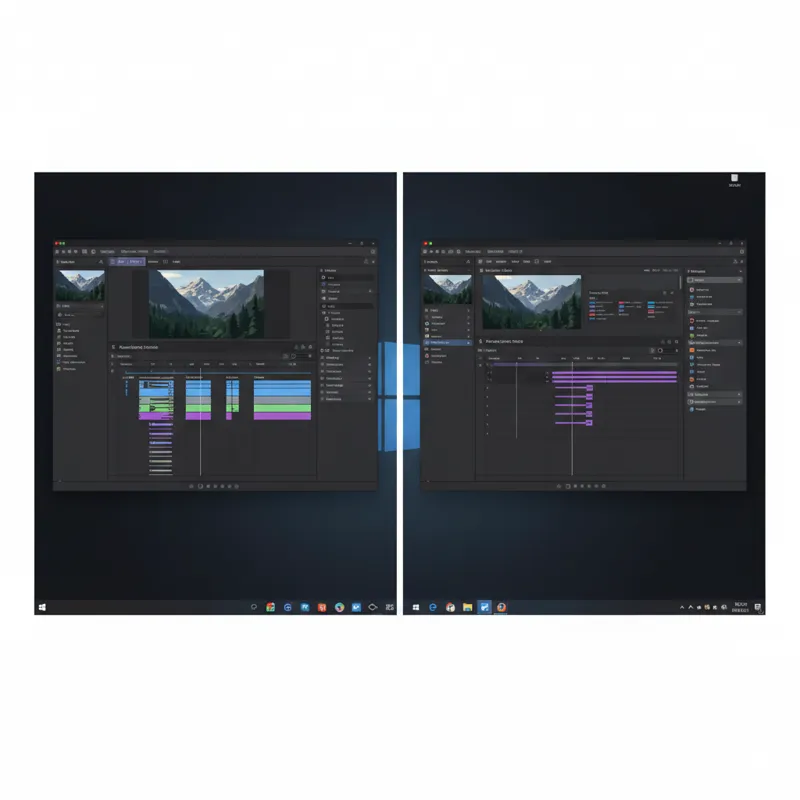
The choice between macOS and Windows often comes down to personal preference, ecosystem lock-in, and specific software needs.
macOS: Apple’s ecosystem, particularly with their M-series chips (M4, M5, M5 Pro, M5 Max), offers phenomenal performance per watt. They are highly optimized for video editing software like Final Cut Pro (exclusive to Mac) and show exceptional performance in Adobe Premiere Pro and DaVinci Resolve, especially with hardware acceleration. Macs are generally known for their stable performance, integrated hardware/software, and excellent displays. The unified memory architecture of Apple Silicon is particularly beneficial for video editing, allowing the CPU and GPU to access the same pool of high-speed RAM very efficiently.
Windows: Offers a wider range of hardware options and price points, from budget-friendly to absolute powerhouses. You can customize your machine more extensively and access a broader selection of third-party software and peripherals. Windows laptops equipped with the latest Intel or AMD CPUs and NVIDIA/AMD GPUs provide exceptional performance, often surpassing Apple Silicon in raw discrete GPU power for specific tasks. Software compatibility is broad, supporting Premiere Pro, DaVinci Resolve, Avid Media Composer, and many others.
What Most People Get Wrong When Buying a Video Editing Laptop
It’s easy to get caught up in flashy specs or budget constraints, leading to common pitfalls:
- Underestimating RAM and Storage: Many prioritize a powerful CPU/GPU but skimp on RAM or SSD capacity/speed. This is a fatal mistake. Even the fastest processor will choke if it has to constantly swap data to a slow hard drive or if RAM is insufficient. Video editing demands both speed and space.
- Ignoring Integrated Media Engines: Folks often overlook the dedicated hardware encoders/decoders in modern CPUs and GPUs. These aren’t just for rendering; they’re vital for smooth playback and scrubbing through compressed footage, which makes up the bulk of an editor’s daily work.
- Neglecting Display Quality: What’s the point of meticulous color grading if your display can’t accurately reproduce those colors? A cheap, uncalibrated screen will lead to inconsistent results on other devices.
- Prioritizing Gaming Features Over Editing Essentials: While gaming laptops can be powerful, features like high refresh rate displays (120Hz+) are less critical for video editing than color accuracy or resolution. Sometimes, gaming aesthetics come with compromises in battery life or professional design. Similarly, some might look for the Barbie Computer for general use, but for video editing, the specific hardware tailored for demanding tasks is far more crucial than aesthetics or basic functionality.
- Not Budgeting for Peripherals: A laptop is just one piece of the puzzle. Plan for an external monitor, fast external storage, a comfortable mouse, and potentially a good set of headphones or speakers. These enhance the entire editing experience.
Top Contenders for the Best Laptop for Video Editing in 2026
While specific models and configurations evolve rapidly, we can anticipate the leading contenders for the best laptop for video editing in 2026 based on current trajectories.
High-End Professional Powerhouses (>$3000)
These machines are built for uncompromised performance, targeting editors working with 4K/8K, VFX, and demanding client projects.
- Apple MacBook Pro 16-inch (M5 Max): Expect the M5 Max chip to continue Apple’s dominance in power efficiency and integrated performance. With abundant unified memory (64GB+), a stunning Liquid Retina XDR display, and Thunderbolt 5 ports, it’s a top choice for macOS users, especially with Final Cut Pro.
- Dell XPS 17 / Precision Series (Intel Arrow Lake i9 / AMD Zen 6 Ryzen 9 with NVIDIA RTX 5090): Dell’s flagship large-screen laptops offer immense power. Look for configurations with 64GB+ DDR5 RAM, 4TB+ PCIe Gen 5 NVMe SSDs, and professional-grade NVIDIA RTX 5090 or equivalent AMD Radeon Pro GPUs. Their displays are often excellent, and build quality is robust.
- Razer Blade 16 / MSI Creator Z16 HX / HP ZBook Studio (Latest Intel/AMD with NVIDIA RTX 5080/5090): These models often bridge the gap between gaming aesthetics and professional needs, packing high-end CPUs, the most powerful GPUs, and fast memory into relatively sleek chassis. Their cooling systems are crucial for sustained performance during long renders.
Mid-Range Performance Beasts ($2000 – $3000)
These laptops strike an excellent balance between performance and cost, perfectly capable for most 4K workflows and ambitious projects.
- Apple MacBook Pro 14-inch (M5 Pro): Offering a significant step up from the base M5, the M5 Pro provides more CPU and GPU cores, making it a highly capable and portable editing machine for many professionals.
- Gaming Laptops (Intel Arrow Lake i7 / AMD Zen 6 Ryzen 7 with NVIDIA RTX 5060/5070): Models from ASUS ROG, Lenovo Legion, and Acer Predator can be fantastic value. With 32GB DDR5 RAM, 1-2TB PCIe Gen 5 SSDs, and powerful mid-range GPUs, they offer exceptional bang for your buck if you can overlook a “gamer” aesthetic. Ensure they have good color-accurate displays.
- Dell XPS 15 / HP Spectre / Lenovo Slim Pro (Latest Intel/AMD with NVIDIA RTX 5050/5060): These premium consumer laptops offer discrete graphics, excellent displays, and solid build quality, making them strong choices for editors who value portability and refined design.
Affordable Options for Aspiring Editors ($1200 – $2000)
While compromises are necessary at this price point, you can still find machines capable of handling 1080p and even some lighter 4K editing.
- Laptops with Current-Gen Intel Core Ultra 7 / AMD Ryzen 7 and NVIDIA RTX 4050/4060 (2025/2026 Models): Look for configurations with at least 16GB (preferably 32GB) DDR5 RAM and a 1TB PCIe Gen 4/5 SSD. These will offer a good starting point, particularly for editors primarily working with efficient codecs like H.264/H.265.
- Consider Last-Gen High-End: Sometimes, a discounted previous-generation flagship laptop (e.g., an early 2025 model with an RTX 4070 or M4 Pro chip) can offer superior performance for the money compared to a current-gen mid-range option. For those also considering programming, a best budget laptop for programming might share some CPU/RAM needs, but video editing fundamentally demands more in terms of GPU and storage speed.
Future-Proofing Your Investment
A laptop for video editing isn’t just a purchase; it’s an investment in your career or hobby. Future-proofing means selecting a machine that won’t become obsolete the moment new camera technologies or software updates arrive.
In 2026, we’re already seeing the proliferation of 8K capture, virtual reality (VR) and augmented reality (AR) content creation, and increasingly sophisticated AI-driven editing tools (e.g., AI-powered upscaling, smart retiming, automatic transcription, generative fill). These technologies demand even more computational power. Choosing a laptop with:
- Maximum RAM capacity: If you can upgrade, consider models that allow for future expansion.
- Latest generation CPU and GPU: They’ll have better support for emerging codecs and AI acceleration via dedicated cores (e.g., Intel’s NPU, Apple’s Neural Engine).
- High-speed I/O (Thunderbolt 5): Ensures compatibility with future external devices and incredibly fast data transfer.
These choices will ensure your laptop remains a capable editing partner for years to come, reducing the need for frequent, costly upgrades.
FAQs (People Also Ask)
Do I need a gaming laptop for video editing?
Not necessarily, but they are often a good choice. Gaming laptops frequently come with powerful CPUs and discrete GPUs, plenty of RAM, and fast SSDs – all components essential for video editing. The main difference lies in display calibration (gaming laptops prioritize refresh rate over color accuracy) and often aesthetics. If you can find a gaming laptop with a color-accurate display, it can be a fantastic and often cost-effective video editing machine.
How much RAM do I really need for video editing in 2026?
For most professional work involving 4K footage, 32GB of RAM is the recommended minimum. If you’re working with 8K, complex motion graphics, or RAW footage, 64GB or more will provide a much smoother experience and prevent bottlenecks.
Is a touch screen laptop good for editing?
For traditional timeline-based video editing, a touch screen isn’t usually a game-changer. Most editors rely on a mouse/trackpad and keyboard shortcuts. However, for certain tasks like rotoscoping, drawing masks, or fine-tuning effects with a stylus in supported software, a touch screen laptop could offer some unique advantages. For general video editing, it’s often a nice-to-have rather than a must-have feature.
Can I edit 8K video on a laptop?
Yes, you absolutely can, but it requires a very powerful laptop. You’ll need the latest generation high-core count CPU (with strong media engines), a high-end discrete GPU with abundant VRAM (12GB+), at least 64GB of RAM, and extremely fast PCIe Gen 5 (or Gen 6) NVMe SSD storage. Proxies are often used to ensure smooth playback regardless of how powerful your machine is.
What’s the best budget laptop for video editing?
The “best budget” depends on your definition of budget and your editing needs. In 2026, a capable budget laptop for light 4K or solid 1080p editing would typically feature a mid-range Intel Core Ultra 7 or AMD Ryzen 7 processor, an NVIDIA RTX 4050/4060 or equivalent GPU, 16GB (preferably 32GB) of DDR5 RAM, and a 1TB PCIe Gen 4 SSD. Look for sales on last-generation premium models for the best value.
Conclusion
Choosing the best laptop for video editing in 2026 is a nuanced decision, influenced by your specific projects, software, and budget. It’s not about raw power alone, but about a balanced configuration where the CPU, GPU, RAM, and storage work in harmony to eliminate bottlenecks. Prioritize a powerful multi-core CPU with efficient media engines, a dedicated GPU with ample VRAM, at least 32GB of fast DDR5 RAM, and blazing-fast PCIe Gen 5 NVMe storage.
Remember to consider the display’s color accuracy and the range of connectivity options like Thunderbolt 5. Whether you lean towards the optimized ecosystem of macOS or the sheer hardware variety of Windows, understanding the underlying components will empower you to make an informed choice. Invest wisely in a machine that not only meets your current editing demands but is also capable of handling the evolving complexities of future video production. Your creative flow and final output will thank you.